
Sponsored by OWC
The OWC Guide to Thunderbolt 5 Docks and Hubs
With OWC docks and hubs, one cable gives your MacBook Pro everything it's missing – extra Thunderbolt 5 ports, Ethernet, USB-A, and a clutter-free desk.
Published by Macworld on May 6, 2026.
Unlock the full potential of your M4 or M5 pro Mac with Thunderbolt 5
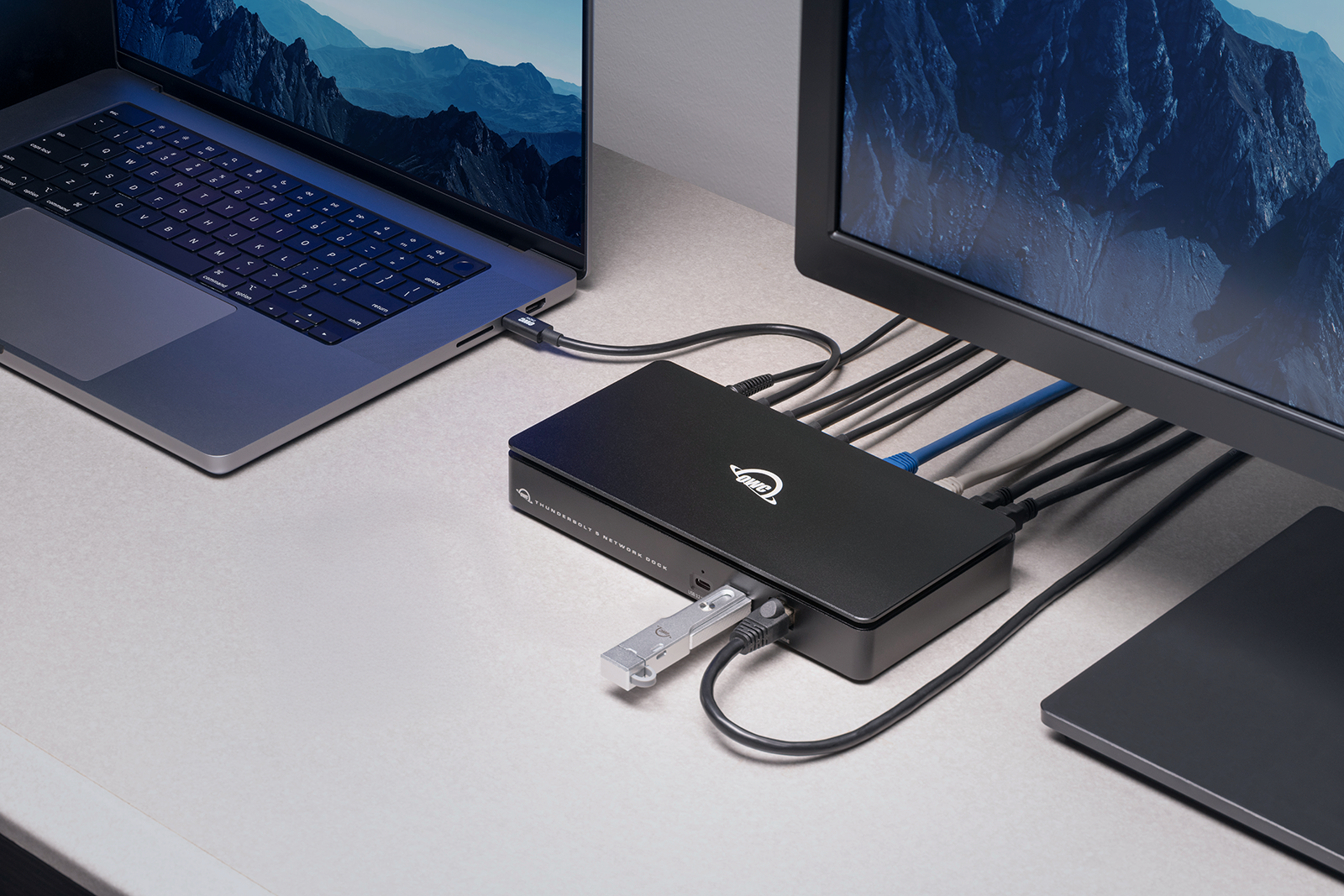
The latest M5 Pro and M5 Max MacBook Pros are well-equipped laptops, with three Thunderbolt 5 ports, HDMI, a card reader, and a headphone jack. But there’s no Ethernet port, no USB-A for older accessories, and the moment you plug in a display, a drive, and a charger, those Thunderbolt ports are occupied. Add any more than the basics and you’ll need to start making trade-offs, or your desk will become a mess of cables and adapters. That’s not a Mac problem, it’s a port problem.
A Thunderbolt 5 dock or hub can solve this problem with a single cable, letting you turn one port into many. With a dock your MacBook becomes a full workstation, with multiple Thunderbolt 5 ports, USB-A for legacy peripherals, wired Ethernet, card readers, audio ports, and enough power throughput to charge your laptop at full speed (no separate charger needed) – all at the highest speeds currently available.
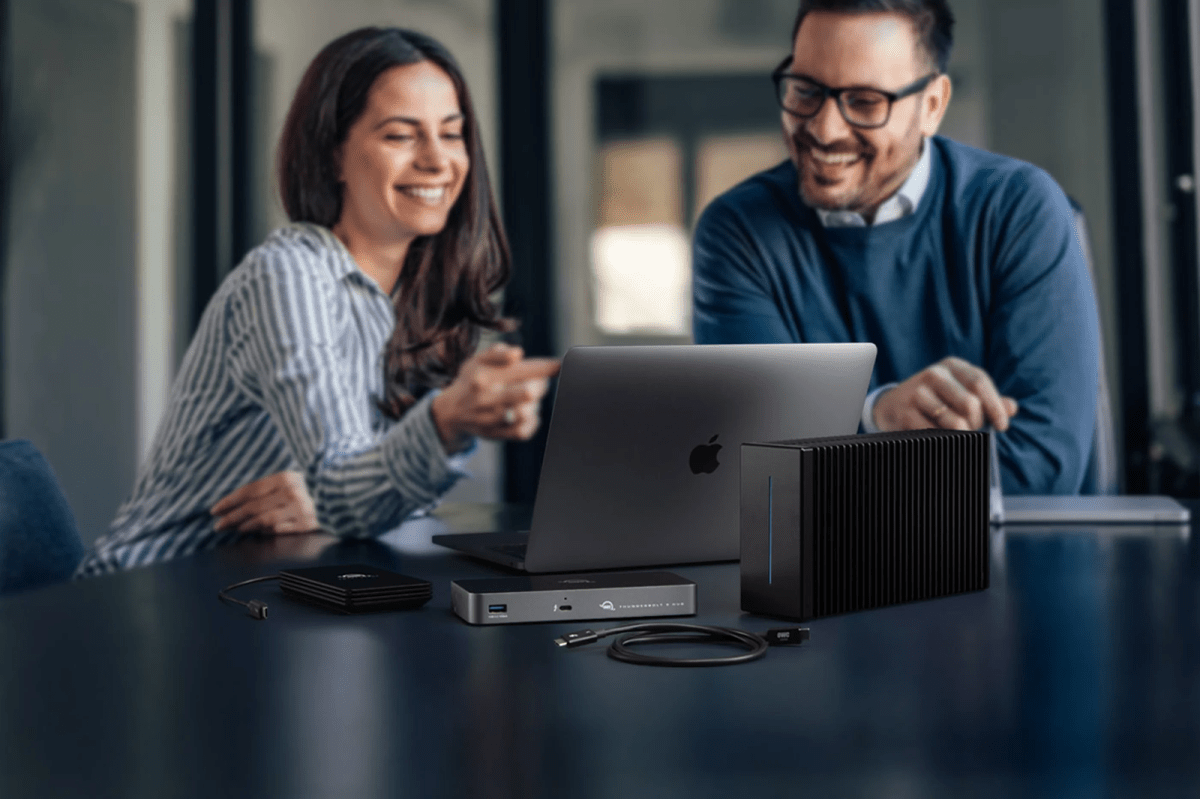
OWC (Other World Computing) has been building Mac connectivity solutions since 1988, and the trio of Thunderbolt 5 products detailed in this guide serve three distinct use cases: you can get more ports with the Hub, a complete desk setup from one cable with the Dock, and serious network infrastructure with the Dual 10GbE Network Dock. This guide explains what each product does, who it’s for, and how to choose the right one.
OWC
OWC Thunderbolt 5 Docks and Hubs – Overview
What You Need to Know Before You Buy a Thunderbolt 5 Dock or Hub
Not all docks are Thunderbolt 5-certified. Intel’s Thunderbolt certification process ensures a device meets the full specification, including the correct bandwidth allocation, power delivery, and backward compatibility. Without certification, a dock may claim Thunderbolt 5 speeds but perform much slower in real-world use. All the OWC Thunderbolt 5 products in this guide carry official Thunderbolt certification.
Thunderbolt 5 delivers up to 80Gb/s of bi-directional bandwidth. That’s double the 40Gb/s of Thunderbolt 4, with a further boost to 120Gb/s available for display-intensive workloads via Bandwidth Boost. In practical terms, it’s the difference between backing up 8K footage in minutes not hours, or being able to run multiple high-resolution displays at once.
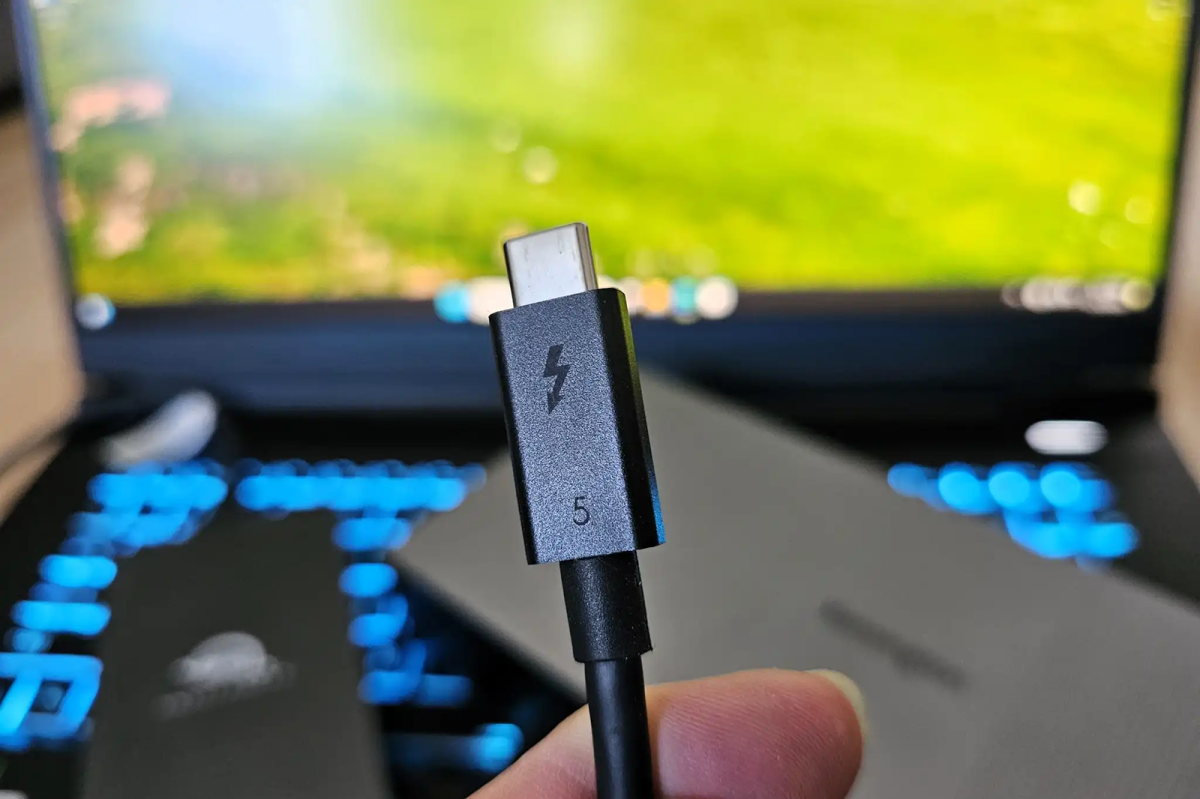
The cable matters. A Thunderbolt 4 cable connected between two Thunderbolt 5 devices will cap performance at Thunderbolt 4 speeds. Always use the certified Thunderbolt 5 cable supplied with your OWC dock or hub.
Backward compatibility is full and automatic. OWC’s Thunderbolt 5 devices work with Thunderbolt 4, Thunderbolt 3, USB4, and USB-C. This means you won’t need to replace your existing hardware, but to get the best performance you will need a Thunderbolt 5 Mac running macOS 15.3 or later.
Hub vs dock. A hub gives you more Thunderbolt 5 ports, letting you connect additional devices. A dock adds a wider range of ports – USB-A, Ethernet, card readers, and audio – allowing everything on your desk to connect to your MacBook via a single cable. The right choice depends on what you actually need, rather than how much you want to spend.
Display limits on Mac. How many external displays your Mac can run depends on which chip it has. M5 Pro supports up to three external displays; M5 Max supports up to four. M4 Pro and M4 Max are limited to two.
OWC
Choose Your OWC Thunderbolt 5 Dock or Hub
| Problem | Solution | Why It Works |
|---|---|---|
| There are not enough Thunderbolt 5 ports on my Mac | OWC Thunderbolt 5 Hub | Converts one Thunderbolt 5 port into three Thunderbolt 5 ports plus USB-A, with full 80/120Gb/s bandwidth |
| I want to connect all my peripherals with one cable | OWC Thunderbolt 5 Dock | 11 ports, card readers, 2.5GbE Ethernet, 140W charging – all from a single Thunderbolt 5 connection |
| I need to access multiple high-speed networks | OWC Thunderbolt 5 Dual 10GbE Network Dock | Three fully independent network connections, each on its own dedicated hardware |
OWC Thunderbolt 5 Hub – for iPad Pro & MacBook Pro users who need more Thunderbolt ports
OWC
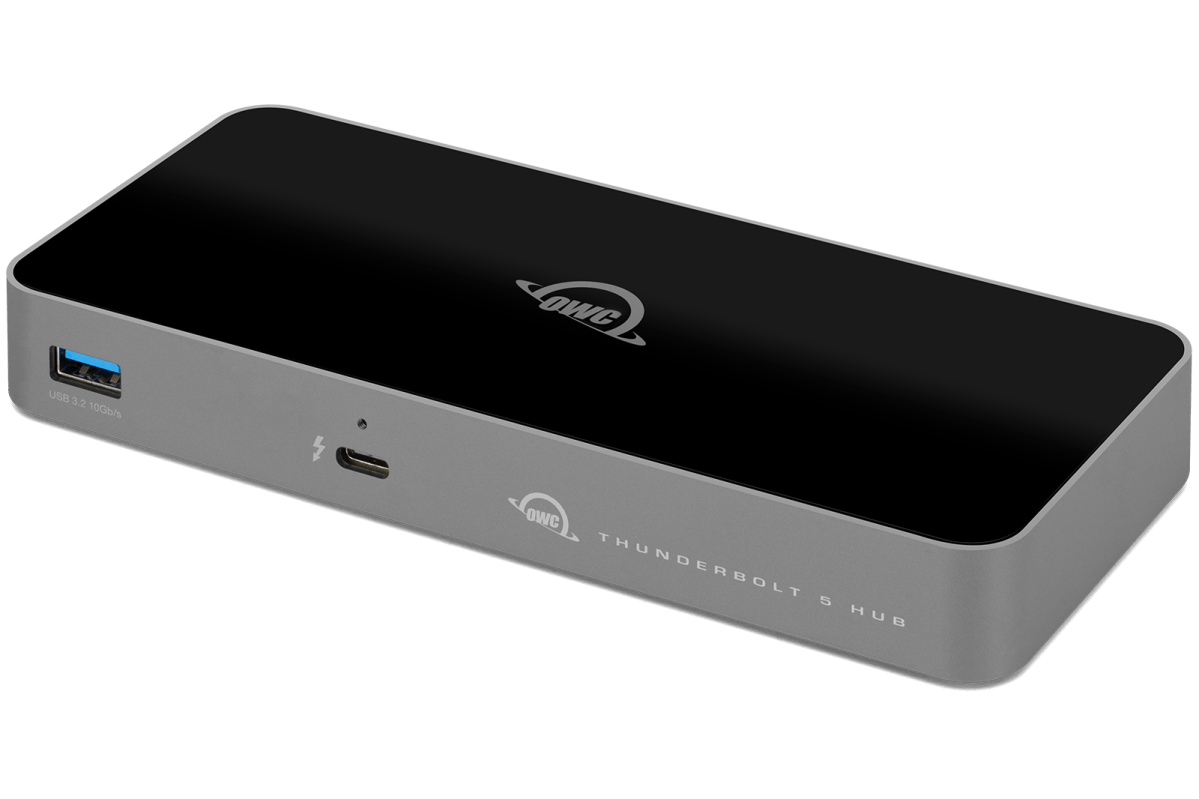
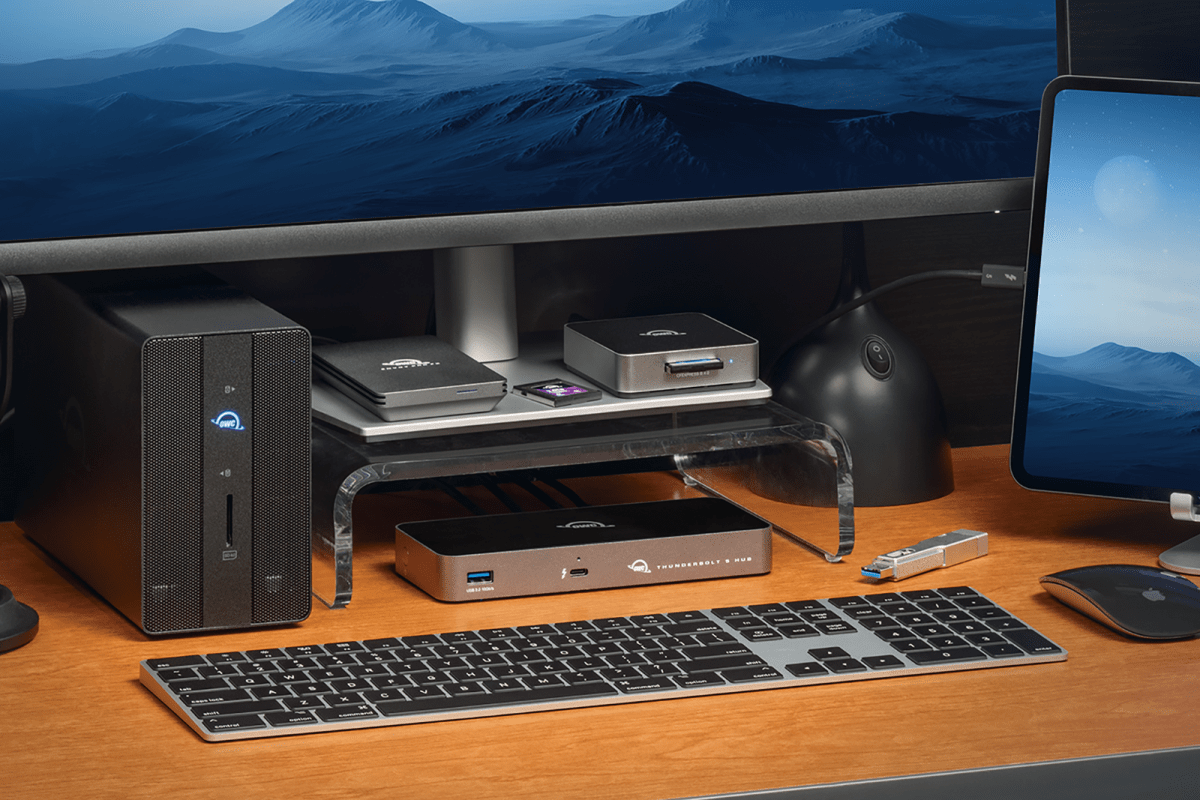
The OWC Thunderbolt 5 Hub is the smallest and most focused product in this line-up. It takes a single Thunderbolt 5 connection and turns it into three more Thunderbolt 5 ports, each capable of running at full speed. There is also a USB-A port for older peripherals. The enclosure is fanless aluminum for silent operation, and slim enough to sit flat on a desk without drawing attention.
What sets it apart from a generic USB-C hub is the speed and independence of those three ports. You can run three separate groups of devices at the same time, and unplugging something from one group has no effect on the other devices – useful for anyone who is routinely juggling multiple fast drives or switching between setups. It also works with iPad Pro, so tablet users can connect drives, displays, and peripherals using a single cable.
The Hub is the right pick if your priority is adding more Thunderbolt 5 ports, not more port types. If you need Ethernet, card readers, or audio, you want the Dock instead. But if you’re a photographer running multiple fast drives, a video editor connecting several Thunderbolt devices, or an iPad Pro user who wants a complete desktop setup, the Hub does exactly what it promises in a compact footprint. Your existing Thunderbolt 4 drives and displays will work with it, too.
OWC Thunderbolt 5 Dock – for creative pros & remote workers using MacBook Pro as their main computer
OWC
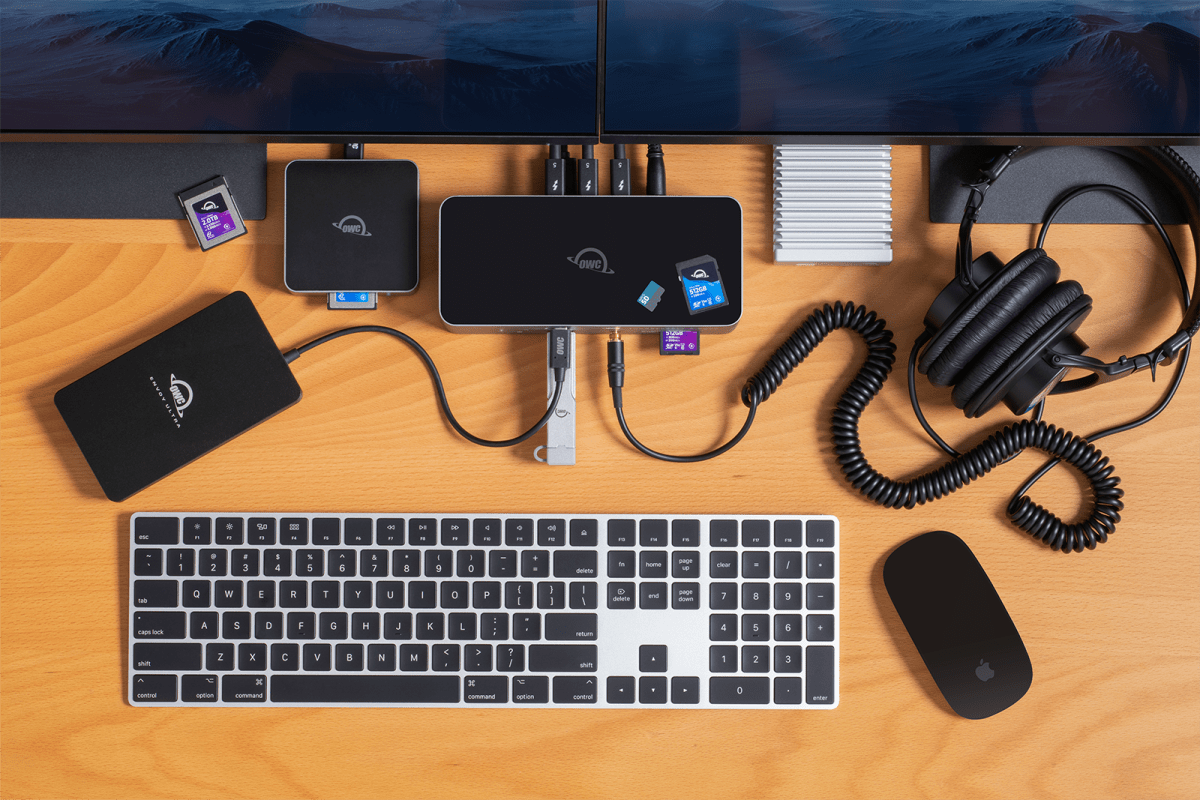
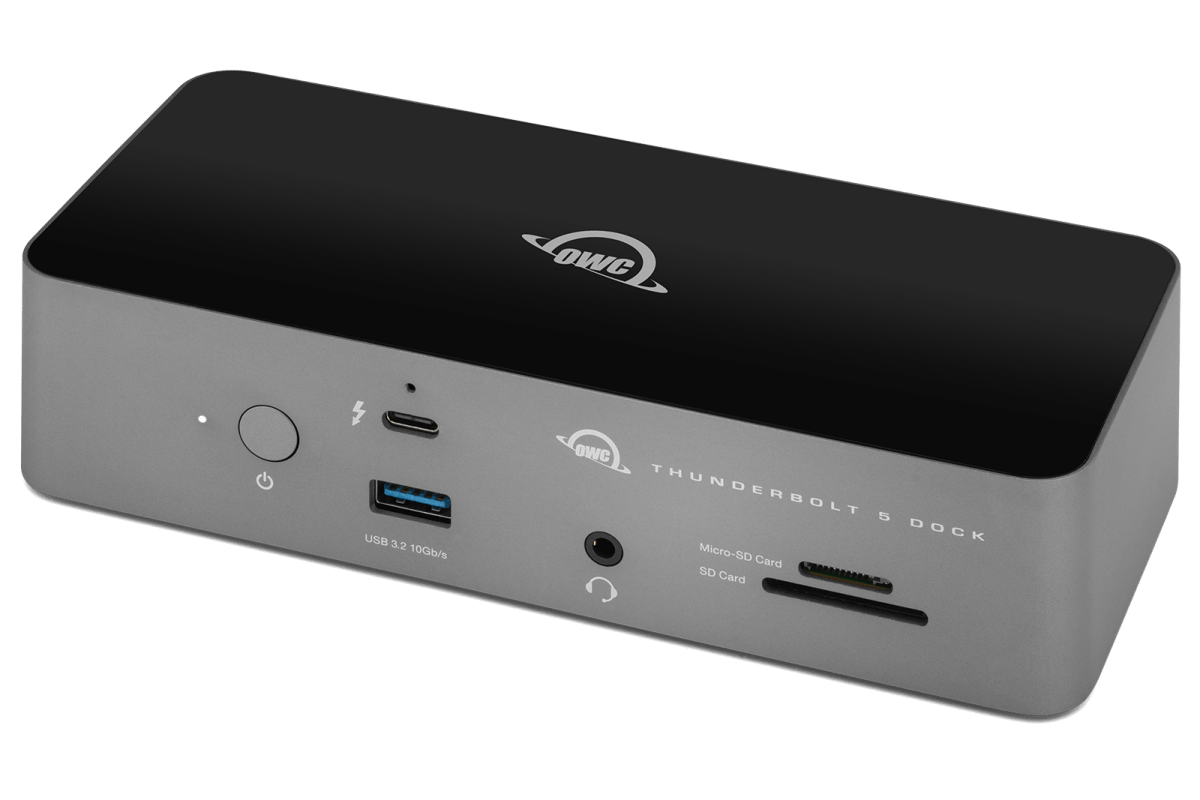
The OWC Thunderbolt 5 Dock is designed to connect your entire desktop setup with a single cable. Connect it to your MacBook Pro and you get an additional 11 ports: three Thunderbolt 5 connections, three USB-A ports, wired Ethernet, SD and microSD card readers, a headphone and microphone jack, and enough power to keep your laptop fully charged – everything that would normally require a tangle of cables and adapters.
The built-in card readers are a practical time-saver. Photographers or drone operators can offload directly to the dock without carrying a separate reader. The wired Ethernet connection – running at 2.5 times the speed of a standard network port – makes a noticeable difference for video calls, large file uploads, and remote collaboration. OWC’s free Dock Ejector software lets you safely disconnect all drives in a single click, and also works with Apple’s SuperDrive via the dock’s USB-A ports.
This is the ideal dock for anyone who uses a MacBook as their main computer and wants to achieve a desktop experience when they sit down at their desk. It isn’t designed for users who need to run multiple separate networks simultaneously – that’s the Dual 10GbE Network Dock. But for creative pros, hybrid workers, and small business users, the Thunderbolt 5 Dock covers every base.
OWC Thunderbolt 5 Dual 10GbE Network Dock – for professional Mac users accessing multiple high-speed networks & shared storage
OWC
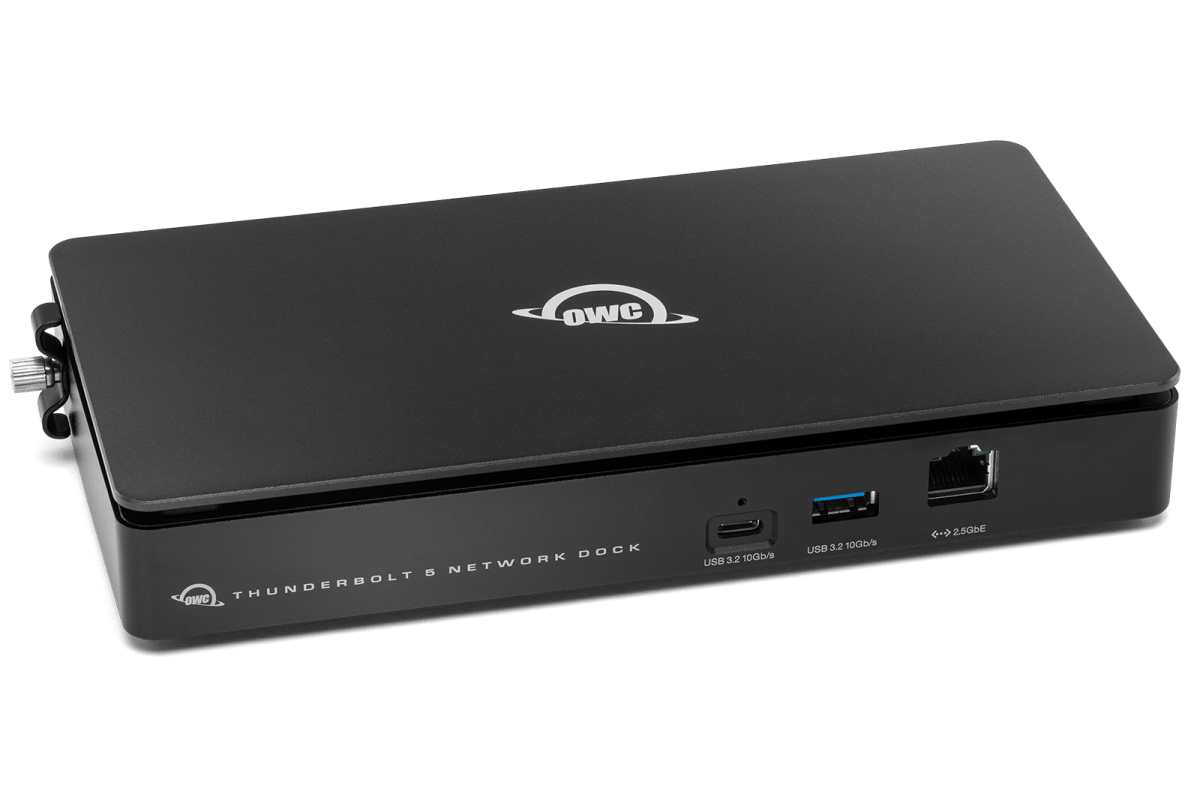
Most Thunderbolt docks include one network port, which is sufficient for internet access and file sharing. But some professional environments will have multiple network connections running at the same time: one for video, one for audio, and one for the corporate IT network. Keeping them separate isn’t optional, it’s how you prevent them from interfering with each other and avoid security issues. Until now, doing that from a laptop meant carrying a dock plus additional network adapters and a switch to tie it all together.
The Dual 10GbE Network Dock is the only Thunderbolt 5 dock to build three network connections directly into a single Thunderbolt dock – each running on its own dedicated hardware, isolated from the others. In a broadcast or live production setting, this means you could carry video over one connection, audio over another, and stay on the corporate network on the third, all from one cable plugged into your laptop. The two faster ports can also be combined to deliver up to 20Gb/s to a compatible shared storage device – fast enough to edit high-resolution video directly from the network without first copying files to your local drive.
This dock also has three Thunderbolt 5 ports and four USB ports for drives, displays, and other peripherals. This is a specialist product for broadcast engineers, IT professionals, AV installers, visual effects teams, and anyone who needs to access multiple network connections from a laptop. For everyday docking, the standard Thunderbolt 5 Dock is the better fit.
Which OWC Thunderbolt 5 Dock or Hub Is Right for You?
If you need more Thunderbolt 5 ports to run multiple fast drives, connect additional Thunderbolt devices, or turn an iPad Pro into a desktop setup then the compact OWC Thunderbolt 5 Hub is the best choice.
If you want to reduce desk clutter, avoid the need to keep switching which devices are connected by hooking them all up from a single cable, while adding card readers, Ethernet, USB-A for older peripherals, audio, and charging ports, the OWC Thunderbolt 5 Dock will be the best solution for most MacBook users.
If your work involves running multiple separate high-speed networks at the same time, the OWC Thunderbolt 5 Dual 10GbE Network Dock is a single-cable solution that promises maximum performance.
OWC
Why Thunderbolt 5 Changes Everything
Thunderbolt 5 is the first version of the standard to double the speed ceiling of its predecessor. Whereas Thunderbolt 4 tops out at 40Gb/s, Thunderbolt 5 delivers 80Gb/s as standard – with speeds climbing to 120Gb/s when driving multiple high-resolution displays. That is a significant performance improvement, completely changing what is possible from a single laptop port.
Thunderbolt 5 is now built into every current pro Mac – the M4 and M5 MacBook Pro models and the Mac Studio all ship with it. Files that used to take hours to transfer now move in minutes. Multiple high-resolution displays can run without affecting the speed of connected drives. External storage can hit speeds that were previously possible only when fitted inside a desktop machine.
Every OWC Thunderbolt 5 product is also fully backward compatible, with Thunderbolt 4, Thunderbolt 3, USB4, and USB-C devices all operating at their native speeds. You don’t need to replace any hardware that currently works: when you upgrade to a Thunderbolt 5 hub or dock you simply stop being held back by the number of ports on your Mac.
Mark Hachman / Foundry
FAQ
What is Thunderbolt 5 and how is it different from Thunderbolt 4?
Thunderbolt 5 doubles the speed of Thunderbolt 4, from 40Gb/s to 80Gb/s, with speeds rising to 120Gb/s when connected to multiple high-resolution displays. It uses the same USB-C connector and is fully compatible with older Thunderbolt and USB-C devices. The practical difference is faster file transfers, smoother multi-display setups, and additional headroom for the most demanding connected devices.
Which Macs support Thunderbolt 5?
Thunderbolt 5 is now standard across Apple’s current pro Mac line-up. The M4 Pro and M4 Max MacBook Pro (launched November 2024) were the first, followed by the M5 Pro and M5 Max MacBook Pro (launched March 2026), which feature three Thunderbolt 5 ports. The current Mac Studio also ships with Thunderbolt 5. Full Thunderbolt 5 functionality requires macOS 15.3 or later. Older Macs with Thunderbolt 4 will work with these OWC docks and hubs, but at Thunderbolt 4 speeds.
Do Thunderbolt 5 docks work with Thunderbolt 4 Macs?
Yes. All OWC Thunderbolt 5 products are fully compatible with Thunderbolt 4, Thunderbolt 3, USB4, and USB-C Macs. The dock or hub will work at whatever speed your Mac supports, but you only get the full Thunderbolt 5 performance with a Thunderbolt 5 Mac.
Does the cable matter when using a Thunderbolt 5 dock?
Yes. Using an older Thunderbolt 4 cable between two Thunderbolt 5 devices limits the connection to Thunderbolt 4 speeds. You need a certified Thunderbolt 5 cable for full performance. OWC includes one in the box with every product in this line-up.
What is the difference between a Thunderbolt 5 hub and a Thunderbolt 5 dock?
A hub gives you more Thunderbolt 5 ports for connecting additional devices. A dock gives you a broader set of connections – USB-A, Ethernet, card readers, and audio – alongside Thunderbolt 5 ports. A hub is the right choice if you need more Thunderbolt device connections; a dock will cut down on desk clutter and let you connect all your peripherals via a single cable plugged into the computer.
What does Thunderbolt certified mean, and why does it matter?
Thunderbolt certification is Intel’s official confirmation that a product meets the full Thunderbolt specification, which covers speed, power delivery, and compatibility. All OWC Thunderbolt 5 docks and hubs carry official certification.
How many external displays can I run through an OWC Thunderbolt 5 dock on a Mac?
It depends on which Mac chip you have. M5 Pro supports up to three external displays; M5 Max supports up to four. M4 Pro and M4 Max are limited to two. Display limits also vary by resolution and refresh rate.
What macOS version is required to use these products with a Thunderbolt 5 Mac?
Full Thunderbolt 5 functionality requires macOS 15.3 or later. All three OWC products also work with older Macs running Thunderbolt 4 or Thunderbolt 3, with Thunderbolt 3 support requiring macOS 15.x or later.